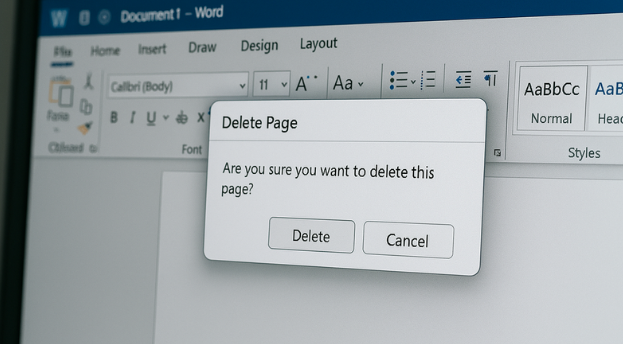
Ammon News - Whether you’re deleting a page full of text or trying to get rid of a stubborn blank one, Microsoft Word usually gives you two paths: remove the page’s contents, or reveal the hidden formatting that’s keeping the page alive. Blank pages are often caused by extra paragraph marks, page breaks, section breaks, or the final paragraph after a table.
Here’s how to delete pages in Word in a few simple steps, from deleting blank pages and pages with content, while offering a few tips in between.
How to delete a page in Word
Step 1: Click anywhere on the page you want to delete.
Step 2: Open the Go To box. On Windows, press Ctrl + G. On Mac, press Option + Command + G.
Step 3: In the Enter page number box, type page and press Enter. Then select Close. This tells Word to highlight the entire current page, not just part of its contents.
How to remove a blank page in Word
Step 1: Open the Navigation pane so you can find the blank page more easily. Select View from the top menu, then make sure Navigation pane is enabled. If needed, select the Pages tab in that pane.
Blank pages in a Word document.
Step 2: Select the blank page you want to remove.
Step 3: Turn on formatting marks so you can see what’s creating the empty page. On Windows, press Ctrl + Shift + 8. On Mac, press Command + 8.
Step 4: Look for extra paragraph marks, a manual page break, or a section break. Select the item causing the blank page, then press Delete. Blank pages in the middle or at the end of a document are often caused by one of these hidden formatting marks.
Why a blank page in Word won’t delete
If the page still won’t go away, one of these common formatting issues is usually the reason. Microsoft’s support guidance points to extra paragraph marks, page-break settings, and section breaks as the main culprits.
Extra paragraph marks
If the blank page appears at the end of the document, Word may be forcing the final paragraph mark onto a new page. Show paragraph marks, select that final mark, click inside the Font size box, type 1, and press Enter. If that still doesn’t pull the paragraph onto the previous page, you can reduce the bottom margin slightly under Layout > Margins > Custom Margins.
Manual page breaks
A manual page break can create a blank page even when there is no visible content on it. Turn on formatting marks, click the page break, and delete it.
Section breaks
Section breaks can be trickier. In the middle of a document, deleting one can change the formatting of the pages around it. If that happens, try changing the break to Continuous instead of deleting it outright. If the blank page is at the end of the document and the section break is causing it, place the cursor just before the break and press Delete.
Page break before formatting
If the empty paragraph has a square bullet next to it, the Page break before setting may be turned on. Open Paragraph Settings, go to the Lines and Page Breaks tab, and clear Page break before.
If the page still won’t delete, turn formatting marks back on and check again for a hidden page break, section break, or that final paragraph mark at the end of the document. In Word, the problem is usually not the blank page itself. It’s the invisible junk keeping it employed.
If all else fails
If you’re still experiencing problems, consider switching from Microsoft Word to Google Docs. Even simply copying and pasting the contents of your Word document into Google Docs could resolve the problem of deleting the page.
That should take care of your issue. If you’re looking how to navigate the latest versions of Windows and macOS like a pro, we can help you out there too. Happy typing!



 comment replay










 الرجاء الانتظار ...